
Making a Special Booking
- From the Session or Day view, if you see a free slot select the Add
 button to book the slot.
From the Calendar view click on the slot you want to book. - The appointment slot is
 locked to other users.
 - The booking form displays.
- Enter the patients name into the Patient / booking name box, record contact details and optionally any comments about the appointment.
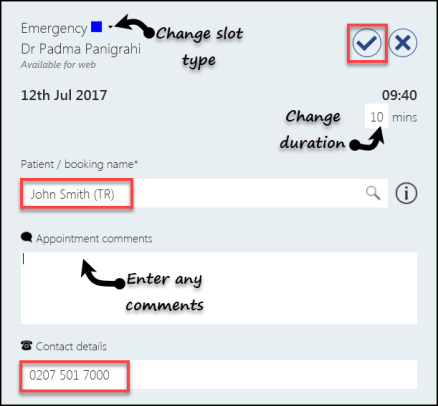
From here you can also:
- Change the appointment duration
- Change the slot type
- Add Appointment comments
- Press Save
 to book the appointment.
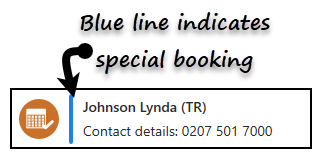
 - The Session and Day view display a blue line next to the name to indicate this is a special booking.
- A message displays confirming the booking.

Filters can also be applied to the views. See - Applying Filters.
The Session and Day views have a quick search facility. See - Quick Search.

